
Heimdall
IntelliJ-style remote file systems, laid over VS Code.
Heimdall is a port of the SFTP half of IntelliJ's Big Data Tools (the Remote File Systems plugin) to VS Code. A named connection to a server, a tree of what's on it, and files that open, edit and save back in place. Nothing runs on the server: it's the SFTP subsystem your sshd already has, so it works on the boxes Remote-SSH can't reach, with no Node, no server install and no one-host-per-window. I built it because I didn't want to give up the tool window I'd used for years, and it's for anyone moving from IntelliJ to VS Code who wants the same. It's free and MIT licensed.
It's pre-1.0. The MVP is built and used daily; transfers, drag and drop, the context menu and sudo are still to come. The roadmap has what's left, in build order.
Heimdall is an independent open-source project with no affiliation to JetBrains or Microsoft. It uses none of JetBrains' code.
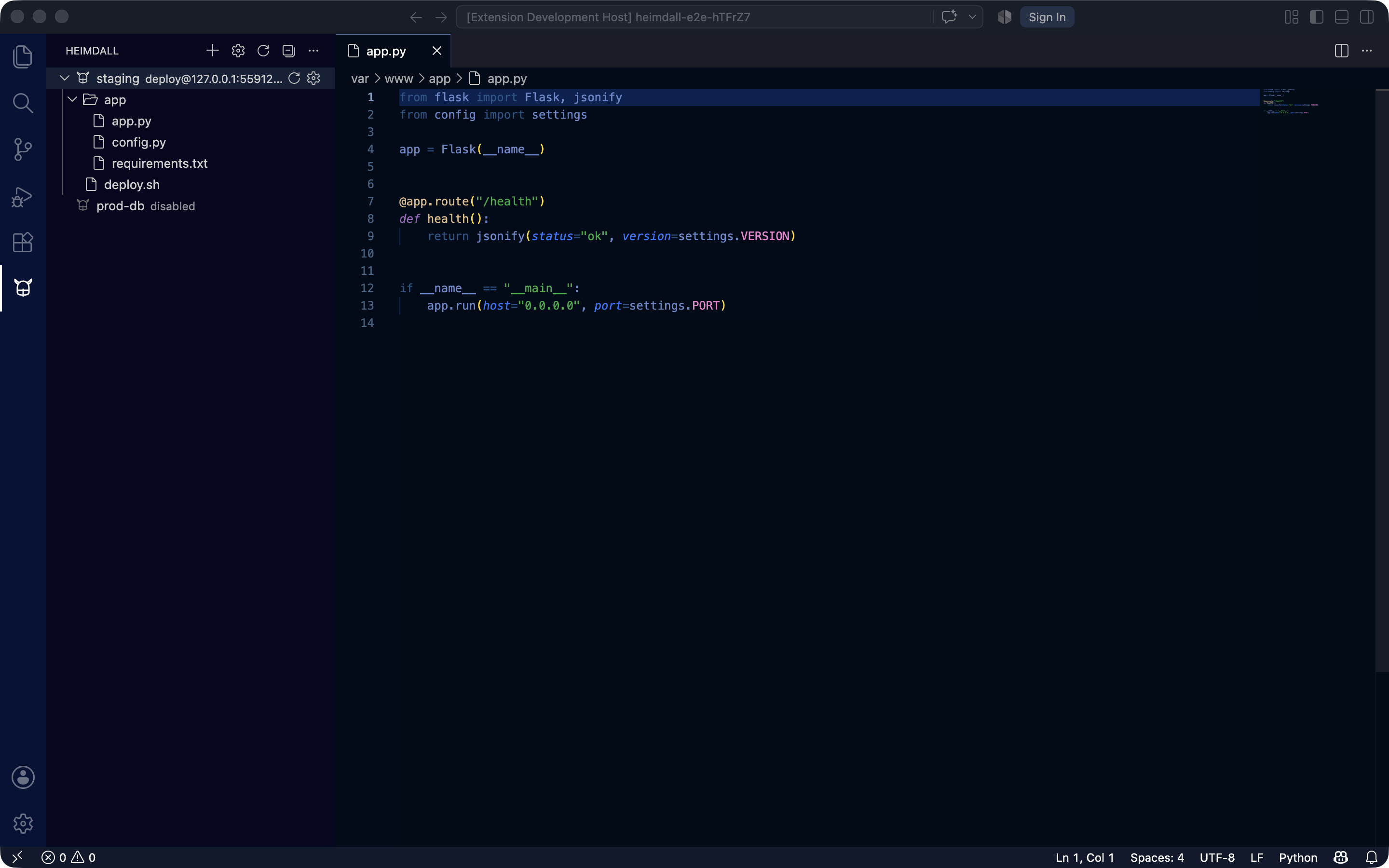
The Heimdall view with box connected and /etc expanded, and a file from the server open in the editor: the tab carries the connection name and the breadcrumb starts at the server.
Installing
Install from the Marketplace listing, or from a terminal:
code --install-extension sultanofcardio.heimdall
The SSH client ships inside the extension as pure JS, so there's nothing to compile and nothing to download afterwards. A .vsix for offline installs is attached to every GitHub release.
The first five minutes
- Open a folder. Connections are saved in its
.vscode/sftp.json. - Open the Heimdall view in the activity bar and choose Add Connection…, or Import Connections from SSH Config… to pick hosts you already have in
~/.ssh/config. - Fill in the form and press Test Connection. A password or passphrase goes to the OS keychain, never to the file.
- Expand the connection. Nothing dials until you do. The tree shows the server from the root path down.
- Click a file. It opens as
sftp://<connection>/<path>, edits like a local file, and Save writes it back. If someone else changed it on the server since you opened it, the save is refused and you get Compare and Overwrite. - Right-click a folder and choose Open in Terminal for an
sshsession landed in that directory, dialled with the same alias, key and host-key policy the tree used.
Each of those has its own page in the sidebar. Connections is the one to read if your setup is anything beyond a host and a password.